The Post-Update Paperweight: Seven Calm Steps Before You Pay for a Repair
Your phone was fine at breakfast. By teatime it is stuck on a spinning logo, your smart TV has forgotten how to leave the setup screen, or your earbuds have gone silent mid-podcast. The culprit is often the same: a firmware update that arrived automatically and did not finish the job. It is tempting to assume the worst and start pricing up a replacement, but a gadget that worked before an update is not automatically a write-off. At The Fix Online, we see plenty of devices that look bricked but are really just confused.
Here are seven recovery moves to try before you hand over any money. Work through them in order, and stop if you are unsure. A calm ten minutes beats a panicked factory reset.
1. Confirm the update is actually the suspect
Start with the timeline. Did the problem begin after a notification about a software update, an overnight download, or a router reboot? Check the manufacturer's support pages for known issues with the latest firmware. In 2026, most big brands publish release notes and sometimes a status notice when an update has caused trouble. If other owners are reporting the same loop on the same model, that is useful evidence.
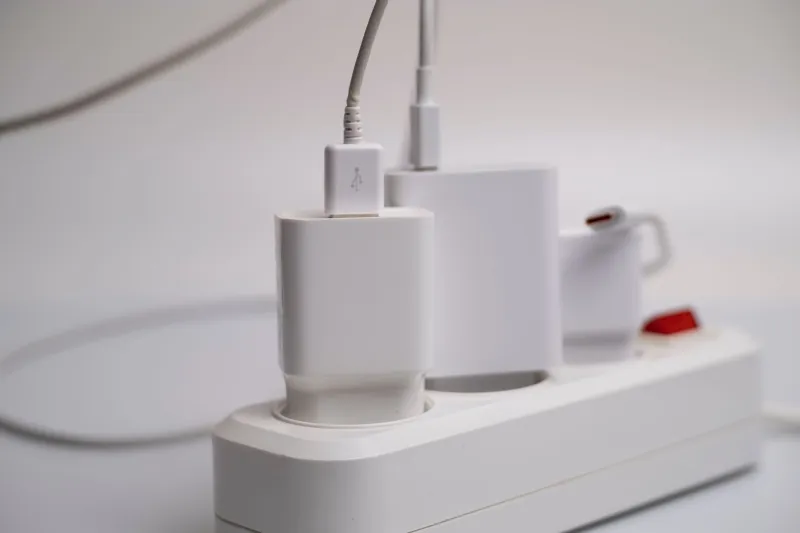
Also check the basics: is the device charged, is the power cable seated properly, and has anything else changed? A dead charging port can mimic a failed update. If the gadget will not show any sign of life at all, try a different charger and socket before you blame the firmware.
2. Do the boring power cycle properly
A quick tap of the power button is not always enough. For phones, hold the power button for 15 to 30 seconds, or use the manufacturer's forced restart combination. For routers and smart TVs, unplug the power lead, wait a full minute, then plug it back in. For earbuds, return them to the case and reset the case if the maker provides a reset button or pinhole.
Do not skip the wait. Some devices hold residual power and need that minute to clear. If the gadget springs back to life, great. If it returns to the same loop, move on.
3. Try safe mode or recovery mode
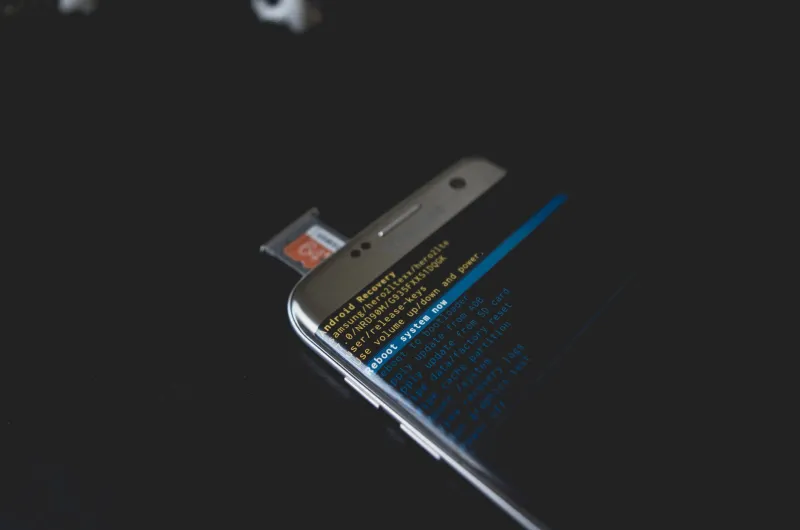
Safe mode is the underrated hero of post-update panic. On Android phones, it usually loads the system without third-party apps, which tells you whether a rogue app is crashing after the update. On smart TVs and some routers, a recovery or maintenance mode may let you roll back or reset settings without wiping everything.
Search for your exact model and the words safe mode or recovery mode. Use the manufacturer's instructions, not a random video with a dramatic thumbnail. If you can reach a menu, note down what you see before changing anything. That information will help a repair technician if you eventually need one.
4. Break the update loop
If the device keeps trying to install the same update and failing, take it off the network. Turn off Wi-Fi and unplug the Ethernet cable if you can. On a router, that may mean disconnecting it from the ONT or modem so it cannot keep fetching the same file. The aim is to stop the loop long enough to reach a stable menu.
Once you are in, check storage space. A update that cannot unpack because the device is full is a common and fixable problem. Delete old downloads, photos or recordings if you can. Then try the update again from a stable connection.
5. Use the maker's own recovery tool
Most major brands have a desktop recovery tool or a documented reset method. Apple has DFU and recovery mode via a computer. Samsung has Smart Switch and recovery mode. Many router makers offer TFTP recovery or a firmware restoration utility. Earbud brands often publish a reset sequence that looks like a secret handshake but is genuinely useful.
Use only the official tool and the correct firmware for your exact model and region. A file for a different hardware version can make things worse. If the tool asks you to erase the device, make sure you have a backup or accept that photos and messages may go. Do not guess your way through a firmware flash.
6. Check warranty, rights and the retailer first
If the gadget is under warranty, contact the retailer or manufacturer before you pay anyone. In the UK, your consumer rights are with the retailer, not the manufacturer. The Consumer Rights Act 2015 says goods must be of satisfactory quality, fit for purpose and as described. A forced update that breaks a device you bought recently is worth raising formally, even if the retailer's first response is to point you at a support page.
Keep your receipt, order confirmation and any photos or video of the fault. If you paid by credit card and the item cost more than £100, Section 75 may give you additional protection. Debit card chargeback is another route, though it is not a guarantee. This is not legal advice, but it is worth knowing before you shell out for a repair.
7. Decide: repair, replace or wait
If the device is old, out of warranty and the recovery tool has failed, get a quote before committing. Ask the repairer what they will charge to diagnose it, whether that fee comes off the repair, and what happens if the fault is a software issue they cannot fix. For a cheap pair of earbuds or a basic router, a paid repair may cost more than a sensible replacement. For a laptop, phone or TV, a proper diagnosis is often worth it.
One last thing: do not keep restarting the same failing update for hours. If three careful attempts have failed, stop. Repeated interrupted flashes can turn a recoverable software problem into a bigger job. Write down what you tried, then ring the maker or a local repair shop with the facts.
A gadget that dies after an update is annoying, but it is not always a funeral. Check the timeline, try the official recovery routes, and know your rights before you spend. The Fix Online's rule of thumb is simple: diagnose before you replace.