The Cosy Laptop Trap: Seven Winter Habits That Send Fan Noise Through the Roof
November has a way of rearranging a UK home. The heating clicks on, the big jumper comes out, and the laptop — faithful workhorse of the kitchen table — gets moved to the nearest soft surface. That is usually when the fan starts sounding like a small jet preparing for take-off.
Before you assume the worst, remember this: a laptop that is hot, loud and slow in winter is often doing exactly what it has been told. It is trying to shift heat while sitting on a duvet. The trick is working out whether you are dealing with a blocked vent, a software sulk or a genuine hardware fault. Here are seven winter habits that cook laptops, plus the quick checks that separate a dusty grille from a repair bill.
1. The duvet desk
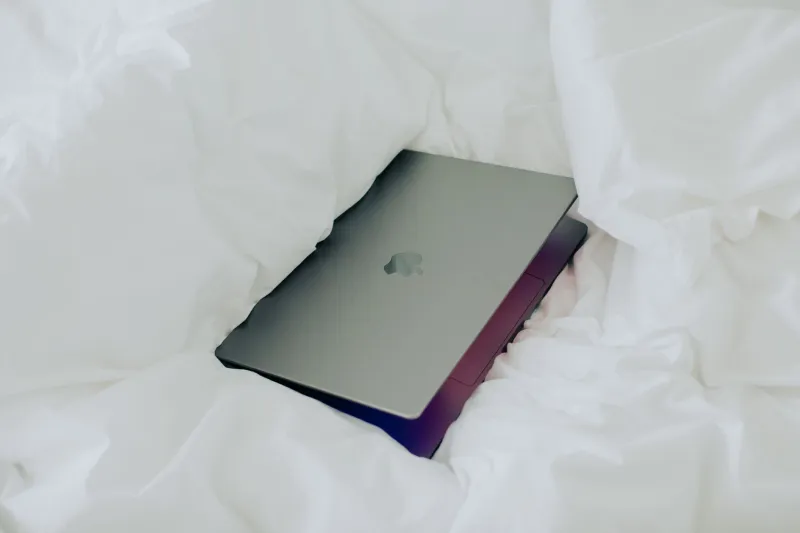
This is the classic. A duvet, blanket or thick throw looks harmless, but it seals the intake vents underneath the laptop. The fan spins harder, the processor hits its thermal limit, and Windows or macOS starts throttling performance to protect the hardware. You get a hot lap, a noisy fan and a machine that suddenly cannot handle three browser tabs and a video call.
Quick check: put the laptop on a hard, flat surface for ten minutes. A tray, a wooden desk or even a large book will do. If the fan settles and the machine speeds up, you have found the culprit. Lap desks with ventilation holes are fine; soft bedding is not.
2. The radiator-adjacent charging spot
Charging a laptop already creates heat. Parking it next to a radiator, under a desk lamp or against a hot external wall adds more. Lithium-ion batteries dislike sustained heat, and the laptop's cooling system has to work harder to keep everything in range. Over time, this is the sort of habit that shortens battery life rather than causing a dramatic explosion.
Quick check: move the laptop at least a forearm's length away from direct radiator heat. Do not charge it under cushions, on a heated floor or inside a padded sleeve. If the underside feels uncomfortably hot after an hour of light use, it needs more air, not more insulation.
3. The sofa cushion sink
Sofas are worse than beds in some ways because the cushions mould around the laptop and block the side vents as well as the bottom. You may not notice until the fan ramps up during a video call or a game. By then the laptop has been sitting in its own warm pocket of air for an hour.
Quick check: use a firm cushion or a lap tray to create a gap. If the laptop has rear exhausts, make sure they are not aimed straight into the sofa back. A cheap folding lap tray is one of the least glamorous but most useful laptop accessories you can buy.
4. The closed-lid download
Many people close the laptop lid and leave it downloading updates, syncing photos or running a backup. On some designs, the hinge area is part of the cooling path, and a closed lid on a soft surface traps heat. The machine may also wake from sleep for background tasks while sitting on a bed.
Quick check: if you need to leave a heavy task running, put the laptop on a hard surface with the lid open. Check the power settings so it does not sleep mid-download, but do not treat a closed lid as a guarantee of cool, quiet operation.
5. Dust bunny season
The heating comes on, rooms get drier, and dust starts moving around. Vents that were merely grubby in September can become properly clogged by November. A blocked heatsink means the fan has to run faster for longer, and the laptop may throttle even during ordinary web browsing.
Quick check: shut down, unplug and look at the vents with a torch. If you can see a felt-like mat of dust, short bursts of compressed air from the outside can help. Keep the fan still with a cocktail stick if you can reach it, and do not blast air into the machine at point-blank range. If the laptop is under warranty, check the terms before opening anything.
6. Lap gaming in a jumper
Winter makes gaming on the sofa tempting, but a heavy game, a warm jumper and a soft cushion are a terrible combination. The laptop is producing maximum heat while its vents are pressed into fabric. It is not a fair test of whether the machine is broken.
Quick check: try the same game on a hard table with the charger connected and the room at a normal temperature. If performance recovers, the laptop is probably fine. If it still shuts down or the fan makes a grinding noise, move to the repair question below.
7. The 'it is cold, so it needs a blanket' myth
A cold room does not mean a laptop needs insulation. If anything, moving a cold laptop into a warm, humid room can cause condensation, so let it acclimatise before powering on. Do not wrap it in a blanket to keep it 'safe' — that is the opposite of what the cooling system needs.
Quick check: let a laptop that has come in from a cold car or hallway sit for an hour before switching it on. Keep it on a hard surface and keep soft fabrics away from the vents.
The five-minute triage
Before you book anything, do a simple look-feel-listen check. Look at the vents and the fan grille. Feel the underside after ten minutes on a hard surface — warm is normal, uncomfortable is not. Listen for a steady whoosh rather than a grinding rattle. Then open Task Manager on Windows or Activity Monitor on macOS and see whether one app is pinning the processor. A runaway browser tab can make a laptop hot without any hardware fault at all.
When it is a repair, not a habit
Get professional advice if the fan rattles or scrapes, the laptop shuts down repeatedly on a hard surface, the battery is swelling, you smell burning, or the machine stays painfully slow even when cool. Those are not winter habits; they are symptoms. For most UK users, a local repair shop or the manufacturer's service partner is the sensible next step. Take the charger and note when the problem started — it saves time and usually money.
Winter is hard enough without a laptop that sounds like a kettle. Change the surface, clear the vents and give the machine a fighting chance before you blame the hardware.