Chips, Firmware and Fine Print: Why Your Printer Only Looks Broken
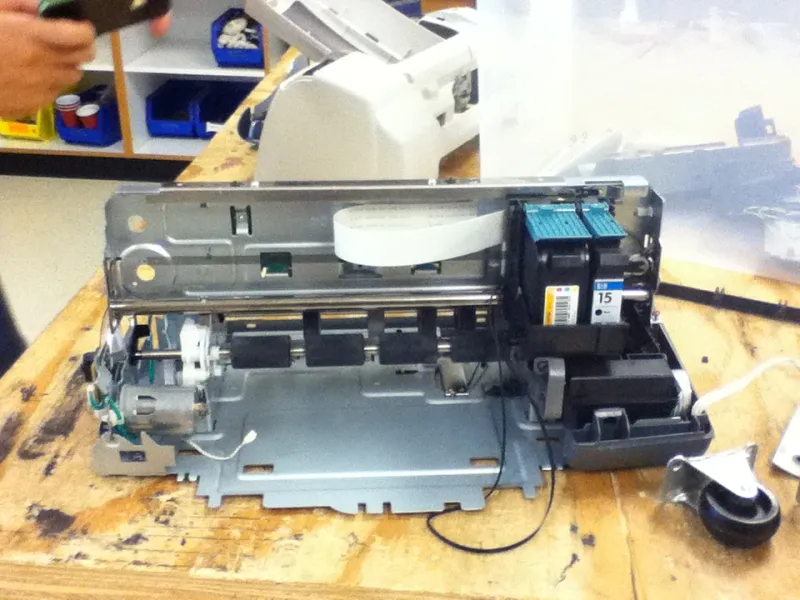
Photo: Klosito, CC BY-SA 3.0, via Wikimedia Commons
There is a particular kind of fury reserved for the printer. It sits there, quietly humming, hardware entirely intact, and refuses to print a boarding pass because a chip in a plastic box has decided it is unhappy. Nine times out of ten nothing is broken. What you are looking at is a business model wearing a printer costume.
This is the audit we would run before booking a repair, buying a new ink set, or signing up to anything with the word 'plan' in the title.
Three locks, one machine
Almost every 'my printer is broken' story in the UK comes down to one of three things stacked on top of each other.
Lock one: firmware and dynamic security
Manufacturers push firmware updates over the internet, often without asking. Some of those updates tighten cartridge authentication — the printer starts rejecting third-party cartridges that worked perfectly well last month, or throws a 'cartridge not recognised' or 'counterfeit' message. The printer is doing exactly what it was told to do; the rules simply changed underneath you.
Check the current firmware version in the printer's settings menu, note it down, and search the model number alongside the error message. If a cartridge that used to work has just stopped, a recent update is the first suspect. Some manufacturers publish a cartridge firmware downgrade or offer a compatibility mode; others do not. Either way, know before you spend.
Lock two: cartridge chips and region coding
Cartridge chips carry page counters and, in some cases, regional locks. A cartridge bought cheaply from an overseas marketplace can be genuine and still be rejected because it was coded for a different market. Refilled and remanufactured cartridges live or die by how good their chip is.
Before buying any third-party cartridge, check three things: the exact printer model (not just the series), whether the listing mentions chip version, and whether the seller is UK-based with a returns address. A saving of fifteen quid is not a saving if you also spend an evening on hold.
Lock three: the subscription
Ink-by-subscription plans — the ones that post cartridges to you and bill monthly — are genuinely good value for heavy users and genuinely bad value for light ones. The trouble starts when the plan and the printer get tangled together: pages roll over or expire, the printer refuses to print when the account is paused, and cancelling can mean returning cartridges you have already paid for.
The twenty-minute lock-in audit
Work through this before you pay for a repair or a fresh ink set.
- Write down the exact model number. Not 'DeskJet' — the full string from the label. Everything else depends on it.
- Find the error code or message verbatim. Photograph the screen. Vague descriptions get vague answers.
- Print a test page and a status report from the printer's own menu, if it will let you. That separates a hardware failure from a cartridge or account refusal.
- Check the firmware version and recent update history in settings or the companion app.
- Log into your account and find the plan terms. Look specifically for minimum term, notice period, page rollover expiry, the price at renewal, and what happens to cartridges on cancellation.
- Search your email for the original sign-up confirmation. The terms you agreed to are usually there, even if the web page has changed since.
- Check what the printer does when the plan is paused. Some stop printing altogether, including scanning on some models.
- Compare cartridge prices for your model — genuine, compatible, and XL — and calculate cost per page from the stated yield. Divide, do not guess.
- Check whether the printer is still under manufacturer warranty or retailer guarantee. Two years of protection under the Consumer Rights Act 2015 in most cases, with the first six months weighted in your favour.
- Get a repair quote before agreeing to anything. A diagnosis fee of £40 against a £70 replacement is a decision, not a formality.
Cancellation: what you are actually entitled to
For anything bought at a distance — online, over the phone, by post — you generally have fourteen days to cancel from delivery under the Consumer Contracts Regulations. For ongoing subscription plans, the position depends on the terms: a rolling monthly plan should be cancellable with reasonable notice, while a fixed-term plan may carry an early termination charge. Read the specific clause, not the marketing page.
If the printer itself is faulty, the Consumer Rights Act 2015 applies to the goods, not the plan: the retailer — not the manufacturer — is the party you deal with, and you can ask for a repair, replacement or refund. If a firmware update pushed by the manufacturer has disabled cartridges you bought in good faith, that is a complaint worth making in writing, and worth escalating to the retailer if the manufacturer stonewalls.
One more thing: check whether cancelling the plan obliges you to return unused cartridges. Many plans do, and the postage is on you. Weigh that against the value of the cartridges left in the drawer before you pull the trigger.
When a cheap replacement genuinely beats the fix
Do the sums honestly. Take the quoted repair cost, add the cost of a full ink set at your normal usage, and compare it with the purchase price of a budget tank or cartridge printer plus its first ink. If the printer is more than five or six years old, uses a cartridge set costing £45, and the repair quote is £80, the maths rarely flatters the repair.
Tank printers — the ones you fill from bottles — cost more up front and far less per page, which suits households printing a couple of dozen pages a month far better than a subscription built for heavy users. But check the bundled ink volume and the cost of a full bottle set before you commit; the cheap-upfront, expensive-refill trick exists in the tank world too.
If you do replace it, do not bin the old one. Most UK councils accept printers at household waste sites as small electricals, and larger retailers will take one back in store. Wipe or reset the device first so your network details and any stored scan history go with it.
The short version
If the printer turns on, feeds paper, and simply refuses to accept a cartridge or an account state, it is not a repair job. It is a terms-and-conditions job. Read the firmware notes, read the plan, check the chip, and only then reach for your wallet — or the recycling bin.