Black Screen, Big Bill Panic: Seven Checks for a Dead Smart Meter Display
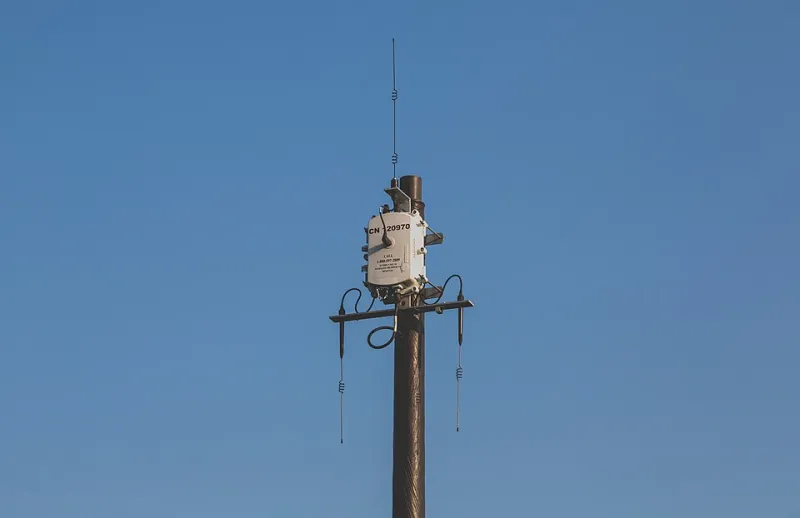
Photo: Tony Webster from Minneapolis, Minnesota, United States, CC BY-SA 2.0, via Wikimedia Commons
It is half four in the afternoon, the dark has arrived, the heating has clicked on, and the little screen by the front door has given up entirely. No numbers, no traffic-light dial, nothing. If your first instinct is to ring the energy company and shout about being overcharged, take a breath. A blank in-home display (IHD) is one of the most common — and most misunderstood — bits of kit in a UK home.
First, the bit that stops the panic
Your IHD is a convenience, not the meter. It is a small screen that receives data from the communications hub attached to your meter, and shows you roughly what you are spending. The billing itself comes from the meter's own readings, sent over the wide area network to your supplier.
So a dark display does not automatically mean your bills are wrong, your meter is dead, or your direct debit is about to triple. It means the little screen has lost power, lost its connection, or thrown a wobbly. Check your supplier's app or your online account first — if readings are still landing there, the meter is fine and the fault sits at the display end.
1. Follow the power lead before anything else
Start with the boring stuff. Most second-generation (SMETS2) displays run off a mains adapter, though a fair few of the older ones use batteries or a rechargeable pack.
- Is the plug actually in, and is that socket switched on? Test the socket with a phone charger.
- Try a different socket entirely — adapters fail quietly.
- If it runs on batteries, swap them for fresh ones. Do not mix old and new, and do not use cheap zinc cells in something that sits there drawing power all day.
- Check the lead where it enters the back of the unit. Cables behind kitchen units get yanked by vacuum cleaners more often than anyone admits.
If the screen comes back but dies again within a day, you have a failing adapter or battery pack. That is a replacement conversation, not a repair one.
2. Move it out of the cupboard
The display talks to your comms hub over a low-power wireless link, similar in principle to a smart bulb. Walls, fridges, boilers, metal meter boxes and the inside of an understairs cupboard will all eat that signal.
Aim for a few metres of open air between the display and the meter cupboard, ideally on the same floor. If it has been living happily on the hall shelf for three years and has only just died, placement is less likely to be the culprit — but it costs nothing to try it on the windowsill for ten minutes.
3. The two-minute power cycle
Unplug it or pull the batteries, wait a full thirty seconds, then power it back up. Give it up to ten minutes to find the hub and repopulate the screen. This fixes a surprising share of blank displays, particularly after a power cut or a broadband outage in the area.
4. Was it unpaired?
Some displays lose their pairing with the comms hub after a firmware update or a prolonged outage. Re-pairing is usually a case of following your supplier's instructions — often a button press sequence, or a prompt in their app.
One word of caution: a factory reset wipes your stored history. You will not lose billing data, because that lives with your supplier, but you will lose the running daily and weekly view. Try everything else first, and if you do reset, ask the supplier for the correct procedure for your exact model rather than guessing at menu options.
5. Look for 2.4GHz clutter
The wireless link between display and hub shares crowded airspace with baby monitors, wireless doorbells, video senders, smart plugs and the microwave. A new gadget in the hallway can knock a marginal link over the edge. Unplug the suspects one at a time and see whether the screen recovers.
6. Read the lights on the comms hub
This is the step most people skip, and it is the one that tells you who owns the problem. The comms hub usually has indicator lights for power, the wide area network (the link back to your supplier) and the home area network (the link to your display and meter).
If the wide area light is out or flashing in a way the manual says it should not, the fault is upstream of your display — an aerial problem, a signal blackspot, or an outage affecting your postcode. No display will work properly in that situation, and no replacement unit will fix it either.
7. Ask whether a software update has landed
Older first-generation (SMETS1) displays in particular can be sluggish or go blank after updates, and some models have known faults that suppliers recognise. It is worth asking directly rather than assuming yours is the only one.
Now the supplier conversation — with a script
Under their licence conditions, suppliers must take reasonable steps to ensure you are offered a working in-home display and that it functions. In practice, replacement is normally free, but you want that confirmed rather than assumed. Ask these, in this order:
- Is my meter communicating with you right now? What are the wide area and home area network statuses on my comms hub?
- Is there a known outage or signal issue at my postcode?
- Has anything changed on my account — a firmware push, a tariff switch, a meter exchange?
- Can you re-pair the display remotely, or talk me through it?
- What model will the replacement be, and is there any charge — please confirm in writing or by email?
- What is the timescale, and how do I read my usage in the meantime?
- If my meter has stopped sending readings, will my bills be estimated, and how do I submit manual readings?
While the screen is dark
Take a photo of your meter reading once a week and log it. That protects you from a run of estimated bills that suddenly get trued up in February. If your meter has genuinely stopped communicating, keep a note of the dates you reported it — if the problem drags past eight weeks unresolved, you can take it to the Energy Ombudsman.
A dark display is annoying, and it removes the one bit of feedback that makes a tariff feel real. But it is rarely the meter, and it is almost never a reason to panic about the bill. Work through the list, get the right answers from the supplier, and keep the kettle out of the equation.