Turkey's In, the Bulb Won't Join: Surviving the 2.4GHz Christmas Morning Standoff
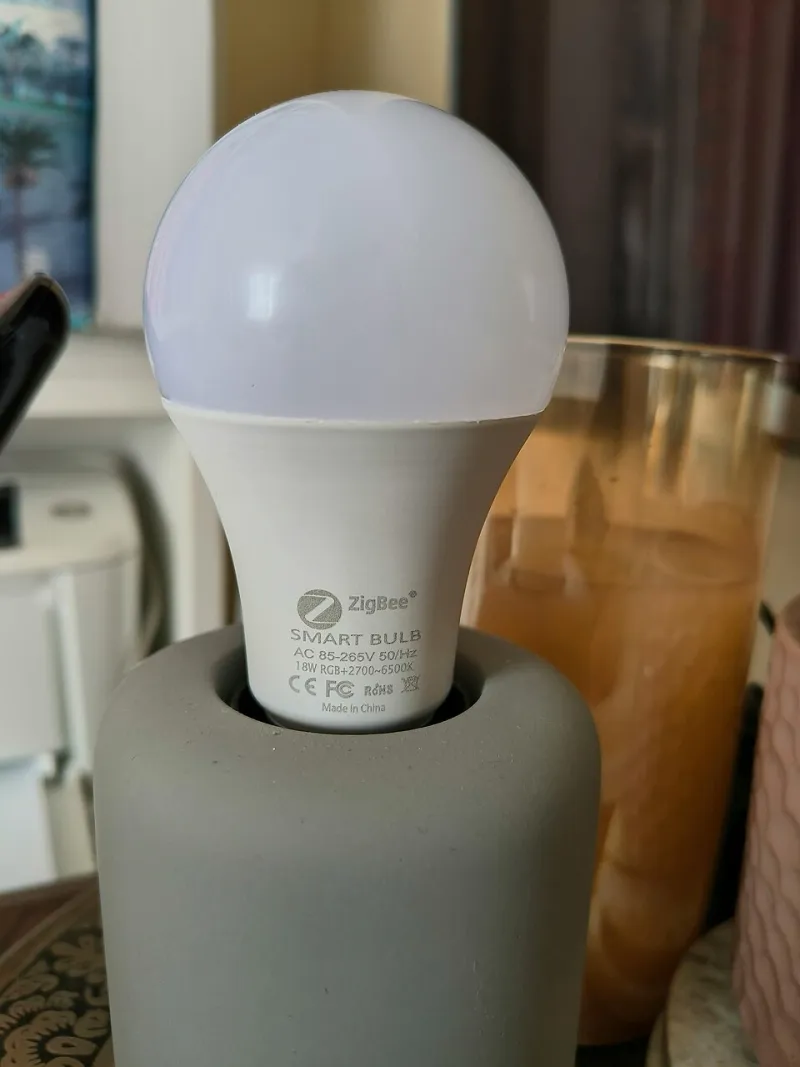
Photo: Danielrosehill, CC BY 4.0, via Wikimedia Commons
Half nine on Christmas morning is a rotten time to discover that the smart plug your sister queued for back in November has no intention of joining the home network. The app spins. The bulb blinks at you, patiently, as though it has all day. The turkey is already in and the oven is the only appliance in the house behaving itself.
Take a breath. In almost every one of these festive standoffs, nothing is broken. What you have is a very cheap radio chip meeting a rather clever router, and the two of them failing to agree terms. Sorting it out usually costs ten minutes, a bit of patience and the willingness to open a router settings page you have never once looked at.
Why Smart Kit Lives Down in 2.4GHz
Practically every affordable smart bulb, plug, camera and video doorbell sold in the UK is a 2.4GHz-only device. That isn't laziness on the manufacturer's part. The 2.4GHz band travels further, shoulders its way through the sort of solid walls you find in a 1930s semi, and the chips cost pennies. The 5GHz band is faster but shorter-range, and a twelve-quid bulb has no use for speed.
The friction starts because most ISP routers — the BT Smart Hub, the Sky Max Hub, the Virgin Media Hub, the TalkTalk box shoved in the hall cupboard — ship with one Wi-Fi name covering both bands. Your phone sees 'SmithFamilyWiFi', picks 5GHz because that's what phones prefer, and then tries to walk a brand-new bulb through a handshake it physically cannot complete. The bulb hears 2.4GHz. The router thinks it's being helpful. Nobody wins.
Band Steering: The Well-Meaning Saboteur
Routers call this 'Smart Connect' or 'band steering' and the intention is genuinely good: one network name, and the router quietly shuffles each device onto whichever band suits it. The problem is that a bulb in pairing mode doesn't have the wit to be steered. It broadcasts its little setup hotspot and waits for a phone that is sat on the wrong frequency.
The classic fix is to split the bands. Log into the router (the address and password are usually on a sticker underneath, or in the ISP's app), find the wireless settings, and give 5GHz its own name — 'SmithFamilyWiFi-5G' is fine. Then join your phone to the plain 2.4GHz name, run the pairing again, and once the bulb is onboard you can put the names back if you prefer.
If your router won't let you split them, a rougher trick works surprisingly often: walk to the far end of the house, or the garden, where 5GHz gives up and the phone drops to 2.4GHz, and pair there. Less elegant, same result.
The Guest Network Trap
Plenty of routers broadcast a guest network that is 2.4GHz-only, which sounds like the answer to a prayer. Sometimes it is. But most guest networks also switch on client isolation, meaning devices on that network can't see each other — so your phone can never hand the credentials over to the bulb. And even if it pairs, some smart kit flatly refuses guest networks, or you end up with a lamp that the rest of your smart home can't reach.
Try it by all means, but hunt for a toggle marked 'allow guests to communicate with each other' or 'client isolation' and switch it off first. Then remember to switch it back on afterwards.
The Permissions Nobody Reads
This is the dull bit that catches out more people than any router setting.
- Local network (iPhone). A prompt appears when you first open the app. If someone tapped 'Don't allow' while distracted by a Quality Street, the app simply cannot see the device. Fix it in Settings > Privacy & Security > Local Network.
- Location (Android). Sounds sinister for a light bulb, but Android only lets apps read the current Wi-Fi network name with location permission granted. Use 'while using the app'.
- Nearby devices / Bluetooth. Needed for the initial discovery of anything in pairing mode.
- Notifications. More apps than you'd expect use these to confirm a successful join, and a denied prompt can look like a failed setup.
Before You Declare It Faulty
Work through this in order. It takes about a quarter of an hour and saves a Boxing Day queue at the returns desk.
- Update the app. Genuinely. Half the festive pairing bugs are fixed in a version pushed out in early December.
- Check the password. Some cheap smart chips choke on symbols like &, £ or a stray space at the end. If your Wi-Fi password is a work of art, temporarily test with something plainer.
- Check the security type. If the router is set to WPA3-only, older kit will refuse it. WPA2/WPA3 mixed usually sorts it.
- Check the channel. A handful of US-designed devices only scan channels 1 to 11. If your router has parked itself on 12 or 13, the bulb will never see the network. Nudge it to channel 1, 6 or 11.
- Unhide the SSID. Most smart kit cannot join a hidden network at all.
- Check access control. If you or a previous installer switched on MAC filtering, the new gadget is locked out before it starts.
- Move closer. Pair the device in the same room as the router, then relocate it once it's joined.
- Factory reset the gadget. Hold the button for the full ten seconds, not the optimistic three.
- Try a phone hotspot. Set a temporary 2.4GHz hotspot with a simple name and password. If the bulb joins that happily, the gadget is fine and the router is the suspect.
When It Really Is the Gift
If you've split the bands, checked the channel, allowed local network access and the thing still won't play, you may genuinely have a dud. You're covered: under the Consumer Rights Act 2015 you have a 30-day short-term right to reject faulty goods and get your money back from the retailer — not the manufacturer, however much the shop assistant points at the box.
Keep the packaging until New Year. And keep the receipt in a place you'll actually find it, because 'it was a present' is a conversation best had with evidence in hand.
One last thing. If your broadband went full-fibre in the autumn and the router changed at the same time, that's your prime suspect — new hardware, new default settings, and a house full of gadgets that were paired to the old box. Worth knowing before you spend Christmas afternoon blaming a £15 bulb for a problem that lives in the hallway.